
Download Baby Shield – Safe Keyboard Play for Toddlers, Free Windows Tool
Overview of Baby Shield
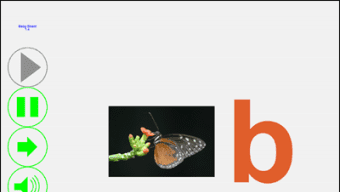
Baby Shield is a lightweight, free Windows utility designed to turn an ordinary keyboard into an interactive learning surface for toddlers. While most parental‑control software focuses on web filtering or screen time limits, Baby Shield fills a niche that many parents overlook: protecting the computer from curious little fingers while still offering a playful experience. The program’s interface is deliberately simple—large, colorful buttons and a floating mascot image that captures a child’s attention. Each time the baby presses a key, Baby Shield displays a vivid illustration that corresponds to the letter or number, and a short musical jingle plays in the background. The result is a harmless distraction that keeps the keyboard busy and prevents accidental system changes, file deletions, or unsaved work loss.
The core idea behind Baby Shield is surprisingly original. Rather than locking the screen completely, it encourages a safe form of exploration. Parents can let their child “type” without fear, knowing that every keystroke triggers a benign visual cue rather than an unintended command. This approach is especially helpful during work‑from‑home days, when the adult needs to stay focused but cannot constantly watch over a crawling infant. The program runs quietly in the background, consuming minimal CPU and RAM, and can be toggled on or off with a single click.
While the background melody may become repetitive for adults, it is intentionally cheerful to keep babies in a good mood. The sound can be muted in the settings if the parent prefers silence. Overall, Baby Shield offers a secure, low‑maintenance way to protect your PC while turning the keyboard into a toddler‑friendly toy. It’s an excellent complement to more traditional parental controls such as screen locks, user accounts, or dedicated child‑proof cases.
Key Features & Functional Highlights
- Letter‑to‑Image Mapping: Every alphabetical key triggers a high‑resolution picture that visually represents the letter (e.g., “A” shows an apple).
- Number & Symbol Support: Numeric keys and common symbols also have associated graphics, expanding the learning scope beyond the alphabet.
- Kid‑Friendly UI: Large, brightly colored buttons and a floating mascot keep the interface attractive to toddlers.
- Background Music: A short, looping tune plays with each key press, designed to be pleasant for babies but easily muted.
- One‑Click Activation/Deactivation: Parents can quickly enable or disable Baby Shield without restarting the computer.
- Low Resource Consumption: The app runs under 5 MB RAM and uses negligible CPU, ensuring it does not interfere with work applications.
- Customizable Settings: Users can change the image set, adjust volume, or switch to a silent mode.
- Secure Operation: The program disables actual keystroke propagation, so no unintended commands reach the operating system.
- Free Updates: Regular, automatic updates keep the image library fresh and fix minor bugs.
Beyond the basic features, Baby Shield also includes a “Lock‑When‑Idle” option that automatically re‑enables the protection after a period of inactivity, ensuring that the computer never reverts to a vulnerable state when the parent steps away. The app’s simplicity is its strength: there are no complex configuration menus, no ads, and no hidden fees. Parents can download the installer from the official website, run it, and be ready to protect their keyboard in under a minute.
For families that already use screen‑time management tools, Baby Shield integrates smoothly. Because it does not require elevated privileges beyond standard user rights, it coexists with antivirus, firewalls, and parental‑control suites without conflict. Its modular design means that you can keep Baby Shield active while other child‑safety applications manage web content, creating a layered protection strategy that covers both software interaction and internet exposure.
Installation, Usage Instructions & Compatibility
Step‑by‑Step Installation Guide
Installing Baby Shield is straightforward and designed for non‑technical users. Follow these steps to get the program up and running:
- Visit the official Baby Shield download page and click the Download Free button. The installer file (babyshield‑setup.exe) is typically less than 10 MB.
- Once the download completes, double‑click the installer. Windows may prompt you to confirm that you want to run the file; click Yes to proceed.
- The setup wizard will appear. Click Next on the welcome screen, then accept the End‑User License Agreement.
- Select the destination folder (the default is
C:\Program Files\BabyShield) and click Install. The process takes fewer than 30 seconds. - When installation finishes, click Finish**. The application will launch automatically and appear as a small floating window on your desktop.
How to Use Baby Shield Effectively
After launching, you will see the large action buttons: Start Shield, Settings, and Exit. Press Start Shield to activate the protective mode. From this point, every key press on the keyboard will be intercepted by Baby Shield, displaying the corresponding image and playing the short melody. If you need to mute the sound, open the Settings menu, toggle the Audio switch to Off, and click Save.
When the baby’s curiosity wanes, simply click Stop Shield in the floating window. This returns the keyboard to its normal functionality without requiring a system reboot. The application also offers a Lock‑When‑Idle option: enable it in Settings, set the idle timeout (e.g., 5 minutes), and Baby Shield will automatically reactivate after the specified period of inactivity.
Operating System Compatibility
Baby Shield is built for Windows 10, Windows 11, and Windows 7 (64‑bit). The software uses standard Win32 APIs, meaning it runs natively on both Home and Professional editions. Although the developers have expressed interest in expanding to macOS and mobile platforms (iOS/Android), a Windows version is currently the only officially supported release. Users on older Windows versions (XP, Vista) may encounter compatibility issues and are advised to upgrade to a supported OS for optimal performance and security.
Because Baby Shield does not require administrative privileges, it can be installed on a standard user account. This feature is especially useful in multi‑user households where children have limited rights. The application also respects Windows’ built‑in security features, such as SmartScreen and User Account Control (UAC), and will not interfere with other software that monitors keyboard input.
Pros, Cons & Frequently Asked Questions
Pros
- Free to download and use, with no hidden fees or ads.
- Prevents accidental keystrokes from causing system changes.
- Bright, child‑friendly visuals that reinforce letter recognition.
- Very low CPU and memory footprint; runs silently in the background.
- One‑click activation and deactivation make it easy for busy parents.
- Customizable sound and image settings to match family preferences.
- Secure operation – keystrokes are blocked from reaching other applications.
Cons
- Only available for Windows; no native macOS, iOS, or Android version yet.
- The background melody can become repetitive for adults (though it can be muted).
- Limited to keyboard interaction; does not protect against mouse clicks or touchscreens.
- Image library is basic; advanced educational content may require third‑party extensions.
- No built‑in reporting or usage analytics for parents who want detailed insights.
FAQ – Baby Shield
Is Baby Shield completely free or does it offer in‑app purchases?
Baby Shield is 100 % free. There are no hidden fees, subscriptions, or in‑app purchases. All updates and additional image packs are provided at no cost.
Can Baby Shield be used on a laptop with an external keyboard?
Yes. The program monitors all keyboard input regardless of whether the built‑in or an external USB/Bluetooth keyboard is used.
Does Baby Shield interfere with my regular work applications?
No. When the shield is active, it blocks keystrokes from reaching other programs, but it does not consume resources that would slow down your work apps. You can toggle the shield off at any time to restore normal typing.
Is there a way to customize the images displayed for each key?
Yes. Within the Settings menu you can replace the default image set with your own PNG or JPG files, as long as the file names match the corresponding key (e.g., A.png for the “A” key).
Will Baby Shield protect my computer if the child tries to press Ctrl+Alt+Del?
The shield blocks all standard keystrokes, including system shortcuts like Ctrl+Alt+Del. The combination will be intercepted, preventing the Windows security screen from appearing while the shield is active.
Can I schedule Baby Shield to activate only during certain hours?
While the current version does not have a built‑in scheduler, you can use Windows Task Scheduler to launch the application with the “/start” argument at your desired times.
Conclusion & Call to Action
Baby Shield fills a unique gap in the parental‑control market by turning a potential source of frustration—an inquisitive baby walking across the keyboard—into a safe, educational play area. Its free, low‑impact design lets parents protect their Windows PC without sacrificing productivity or resorting to heavy‑handed screen locks. While the app currently supports only Windows, its simplicity, customizability, and secure keystroke interception make it a valuable addition to any family’s digital safety toolkit.
If you’re looking for a quick, hassle‑free way to keep your keyboard baby‑proof while encouraging early letter recognition, download Baby Shield today. Click the download button below, follow the easy installation steps, and enjoy peace of mind the next time your toddler wanders into your home office.
Overall Rating: 4 out of 5 stars







